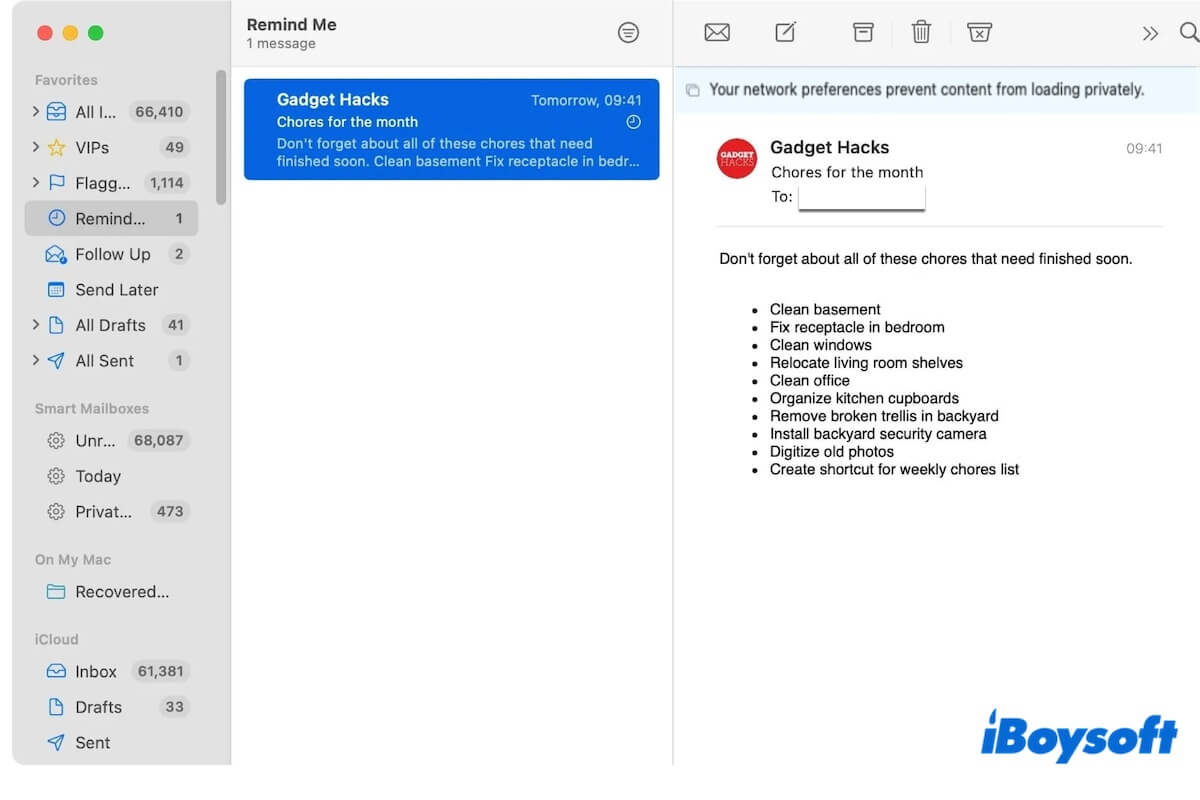
It happens when you're just trying to check your email or catch up on a newsletter. You open Mail on your iPhone or Mac, and instead of a nice header image or a product photo, you see a grey box. Or maybe a tiny, annoying banner at the top of the message drops the bombshell: your network settings prevent content from loading privately.
It’s frustrating. You’ve got bars. Your Wi-Fi is working. So why is your device acting like it’s trapped in 1998 dial-up mode?
Honestly, this isn't usually a "broken" internet connection. It’s actually a conflict between Apple’s aggressive privacy features and how your specific network—whether that's your home router, a corporate VPN, or a public hotspot—is configured to handle data. Apple is trying to hide your IP address from advertisers. Your network might be saying, "No, I need to see where that data is going." When they clash, you get the error.
What is actually happening behind the scenes?
To understand this, we have to talk about Mail Privacy Protection. This feature was rolled out around iOS 15 and macOS Monterey. Basically, when you open an email, companies often use "tracking pixels." These are invisible images that tell the sender exactly when you opened the mail, where you were, and what device you used.
Apple hates this.
To stop it, they route your mail content through a series of proxy servers. This masks your IP address. But—and this is the big but—this process requires a specific type of connection called "Private Relay" or "Mail Privacy Protection." If your network blocks these Apple-owned servers, the "private" part of the loading process fails.
The system gets scared. It stops the download to protect you.
Sometimes it’s a DNS issue. If you use something like Cloudflare’s 1.1.1.1 or a custom Pi-hole setup at home to block ads, those services might inadvertently block the specific hostnames Apple uses to route private content. You’re essentially too well-protected for your own good.
The VPN factor is the usual suspect
If you’re seeing the your network settings prevent content from loading privately message and you have a VPN turned on, start there. Seriously.
VPNs create an encrypted tunnel for your data. Apple’s Private Relay also tries to create an encrypted tunnel. You can't really have two tunnels inside each other without things getting weird. Many VPN providers, especially older configurations of NordVPN or ExpressVPN, haven't perfectly synced with how Apple handles "Hide IP Address" in Mail.
Try turning the VPN off for sixty seconds. Refresh the email. Did the images pop up? If they did, you’ve found the culprit. You don't necessarily have to ditch the VPN forever, but you might need to dive into the VPN app settings and look for "Split Tunneling" or disable "iCloud Private Relay" compatibility modes.
It might be your "Limit IP Address Tracking" setting
This is the toggle that breaks things most often for home Wi-Fi users. You can find it in your Wi-Fi settings. Go to Settings, tap Wi-Fi, and hit the little "i" next to your network name.
There's a switch there labeled Limit IP Address Tracking.
When this is on, your iPhone tries to use that private relay system we talked about. If your home router has a built-in firewall or "Security Suite" (like the ones Eero, Netgear, or Asus often bundle in), the router might see this private routing as suspicious activity. It blocks the connection. Apple sees the block and throws the error.
Try toggling it off. It feels counter-intuitive to turn off a privacy setting, but if you’re on a trusted home network, the risk is minimal. Once it's off, quit the Mail app entirely—swipe it away—and reopen it. Most of the time, the content loads instantly.
Dealing with the Mac version of this headache
On macOS, the error looks a bit different but the DNA is the same. It often happens after a software update. If you’re on a MacBook, navigate to System Settings > Wi-Fi and click Details next to your network. Just like on the iPhone, there’s a toggle for Limit IP Address Tracking.
But wait. There's another layer on Mac.
Check your Mail app settings specifically. Go to Mail > Settings > Privacy. There is a checkbox for Protect Mail Activity. If your network is being stubborn, you might need to uncheck this, which then reveals a sub-option to Hide IP Address.
Sometimes, simply unchecking "Protect Mail Activity" and then immediately re-checking it forces the Mac to re-handshake with Apple’s servers. It’s the digital equivalent of blowing on a Nintendo cartridge. It shouldn't work, but it frequently does.
Public Wi-Fi and Corporate Restrictions
If you are at a Starbucks, an airport, or—heaven forbid—your office, you might not be able to fix this.
Corporate IT departments love to monitor traffic. They use "Transparent Proxies." These proxies hate Apple’s private loading because it makes the traffic invisible to the company’s security filters. In these cases, your network settings prevent content from loading privately because the network admin has literally forbidden private loading.
In these scenarios, you have two choices:
- Tap the "Load Content" button at the top of the email manually every time.
- Switch to cellular data.
Cellular data rarely has these restrictions. If the images load fine on 5G but fail on the office Wi-Fi, it’s a network policy issue, not a bug in your phone.
The DNS trap
Are you using a custom DNS? Maybe you set it up years ago to get around regional blocks or to speed up your browsing.
Apple’s private relay relies on being able to resolve specific Apple domains. If your DNS provider (like OpenDNS or a custom ISP DNS) is filtering those requests, the privacy chain breaks.
Go to your Wi-Fi settings, find Configure DNS, and set it back to Automatic. It’s the boring choice, but it’s the one that plays nicest with Apple’s ecosystem.
Actionable steps to clear the error
Don't just live with those empty grey boxes. Follow this sequence to narrow down exactly where the "block" is happening.
- The Quick Reset: Toggle Airplane Mode on for five seconds, then off. This forces a fresh connection to both cellular and Wi-Fi. Sometimes the IP lease just needs a nudge.
- Check the "Limit IP Address Tracking" toggle: Go to your Wi-Fi settings (the "i" icon) and turn this off. This is the #1 fix for 90% of users.
- Audit your VPN: If you use one, disable it. If the error disappears, look for an update for your VPN app or check their support site for "Apple Mail compatibility."
- Mail Privacy Settings: In the iOS Settings app, scroll down to Mail > Privacy Protection. Toggle Protect Mail Activity off and then back on.
- Restart the Device: It’s a cliché for a reason. Modern memory management is good, but network stacks can still hang. A cold boot clears the cache of failed connection attempts.
- Test on Cellular: Turn off Wi-Fi entirely. If the email loads perfectly over LTE/5G, the problem is 100% your router or your ISP’s DNS settings.
If you’ve done all of this and you're still stuck, check if you have "iCloud Private Relay" enabled in your iCloud settings (under your name at the top of Settings). If you're paying for iCloud+, this is turned on by default. It’s a great feature, but if your ISP is struggling to handle the encrypted headers, turning it off temporarily will tell you if that's the bottleneck.
Most people find that the conflict is simply a result of two different security systems—one on your phone and one on your router—trying to protect you in ways that cancel each other out. Pick one layer of protection and stick to it, and your emails should go back to looking normal.


