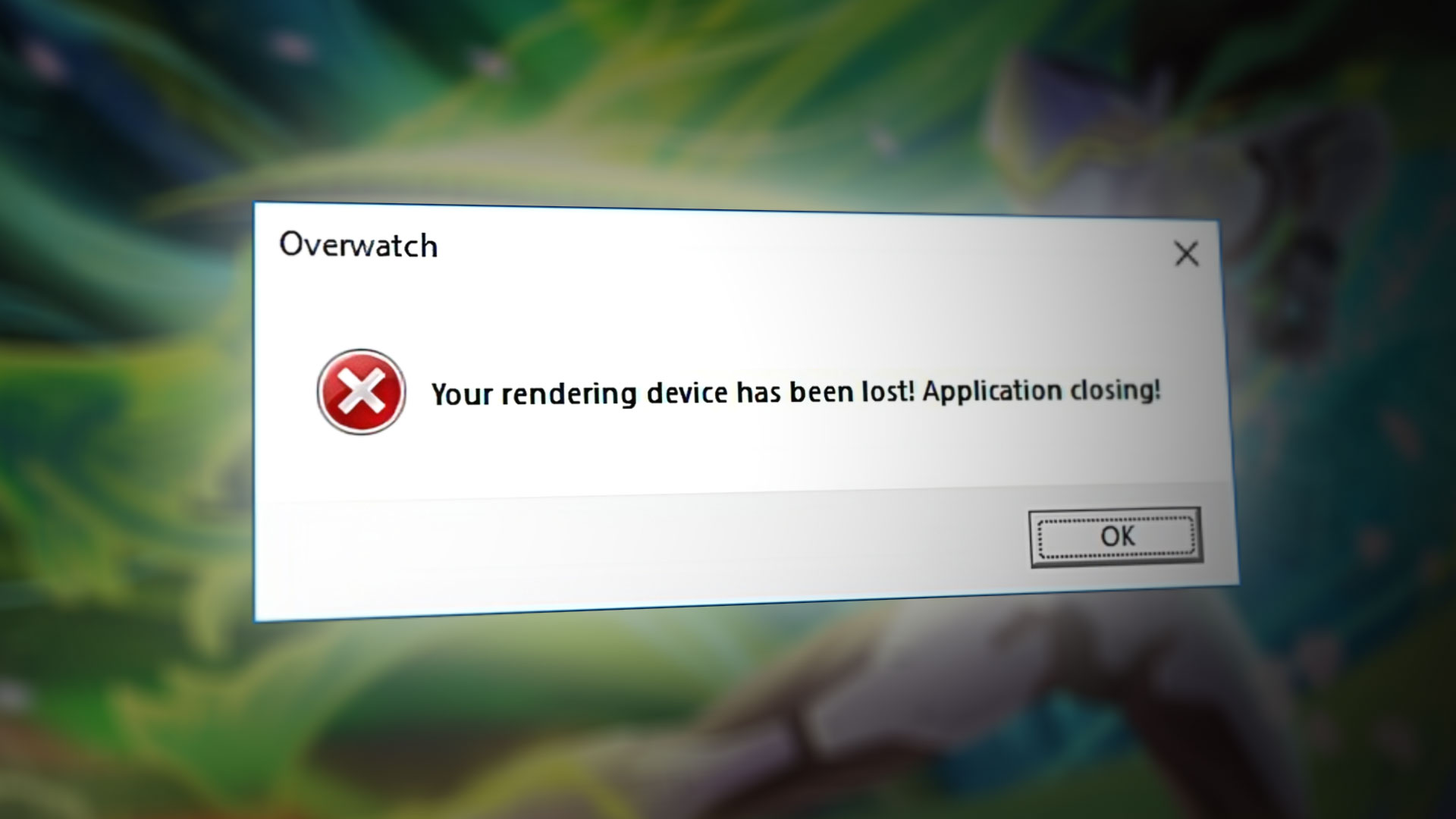
It’s the middle of a team fight in Overwatch 2 or a high-stakes moment in Unreal Engine 5, and suddenly, the screen freezes. A tiny, infuriating dialogue box pops up with a message that sounds like your computer just had an existential crisis: your rendering device has been lost. Then, the game closes. You're back to your desktop, staring at your wallpaper, wondering if your expensive GPU just turned into a paperweight.
It's a terrifying error. "Lost?" Where did it go? Did it fall out of the PCIe slot? In related updates, take a look at: Your PlayStation Settlement Check Is a Participation Trophy for Corporate Lawyers.
Relax. Your graphics card is likely still physically there. This specific error is almost always a software-level communication breakdown between your graphics drivers and the Windows operating system. Essentially, the "handshake" between your game and your hardware got interrupted, and the game didn't know how to recover, so it just gave up.
Most people see this and immediately think their hardware is dying. While that's a possibility, it’s rarely the first thing you should worry about. Let's dig into why this happens and how to actually stop it from ruining your rank. Associated Press has also covered this important issue in great detail.
What Does "Your Rendering Device Has Been Lost" Actually Mean?
Technically, this is often a Timeout Detection and Recovery (TDR) event. Windows has a built-in watchdog timer. If the GPU takes too long to respond to a request—usually more than two seconds—Windows assumes the hardware has hung. To prevent your whole computer from blue-screening, Windows restarts the driver.
The game, which was relying on that driver to draw every frame, suddenly finds the connection severed. It "loses" the device.
Hardware isn't always the culprit. Sometimes it's just a messy driver update or a background app being a resource hog. Blizzard games are notorious for this specific phrasing, but the root cause is a universal Windows-to-GPU conflict.
The Overclocking Trap
You might love that extra 5% performance you get from MSI Afterburner, but "your rendering device has been lost" is the calling card of an unstable overclock. Even if your card runs fine in benchmarks like FurMark or 3DMark, a specific game engine might push a certain voltage spike that causes the driver to reset.
Factory overclocks are also a thing. If you bought an "OC Edition" card from ASUS, EVGA, or Gigabyte, it's pushed to the limit right out of the box. Sometimes, as the card ages or as game engines become more demanding, those factory settings aren't as stable as they used to be. Underclocking—yes, making your card slightly slower—is often the "magic" fix that nobody wants to hear but everyone needs.
Triage: The Immediate Fixes That Usually Work
Don't start taking your PC apart yet. Start with the software.
Check your cables first. I know it sounds stupid. But a loose DisplayPort cable or a flickering HDMI connection can cause the GPU to lose its handshake with the monitor, which sometimes triggers a driver reset. Push them in. Make sure they're snug.
The Nuclear Driver Option: DDU
Most people just click "Update" in GeForce Experience or AMD Radeon Software. That’s fine for 90% of the time. But if you’re seeing the "rendering device lost" error, you need to do a clean sweep.
Download a tool called Display Driver Uninstaller (DDU). It’s a community-standard utility that wipes every single trace of your old drivers from the registry and system folders.
- Download your latest drivers from the official site (NVIDIA, AMD, or Intel).
- Boot your PC into Safe Mode. This is non-negotiable.
- Run DDU and select "Clean and restart."
- Once back in normal Windows, install the fresh drivers.
This clears out any "ghost" settings or corrupted files that might be causing the timeout. Honestly, it fixes about 60% of these cases.
Power Management and "Link State" Issues
Windows loves to save power. Sometimes it's too aggressive. In your Power Options (Control Panel > Hardware and Sound > Power Options), make sure you are on the High Performance or Ultimate Performance plan.
There's a specific setting inside "Change advanced power settings" called PCI Express -> Link State Power Management. Turn this Off. This prevents Windows from trying to put your GPU's data lane to sleep while you're actually using it. It sounds minor, but for certain motherboard and GPU combinations, it's a known conflict point.
The Superfetch (SysMain) Variable
For years, users have debated whether SysMain (formerly Superfetch) interferes with high-end gaming. While it's meant to speed up your PC, it can occasionally cause disk and memory spikes that lead to the "lost" rendering device error. You can try disabling it by typing services.msc in your Windows search bar, finding SysMain, stopping it, and setting the Startup Type to Disabled. If it doesn't help, turn it back on. No harm, no foul.
Why Games Like Overwatch 2 Are Particularly Sensitive
Blizzard's engine is extremely sensitive to GPU clock speeds. Many users have found that the error pops up because the game engine detects a slight hardware hiccup and closes the session to prevent a system-wide crash.
High Frequency vs. High Stability
If you're using an NVIDIA card, try enabling Debug Mode in the NVIDIA Control Panel. Go to the "Help" menu at the top and check "Debug Mode." This forces your factory-overclocked card to run at the reference speeds set by NVIDIA. If the error stops, you know your card's factory overclock is the problem.
At this point, you have two choices:
- Keep Debug Mode on.
- Use a tool like MSI Afterburner to slightly increase the voltage (carefully!) or decrease the Core Clock by about -50MHz or -100MHz.
The Dark Side: When Hardware Is Actually Dying
It’s the thing we all dread. If you’ve reinstalled Windows, swapped drivers, and lowered your clocks, and you’re still seeing "your rendering device has been lost," you might have a hardware issue.
Watch your temperatures. Use HWMonitor or MSI Afterburner's on-screen display. If your GPU is hitting 85°C to 90°C and then crashing, it’s thermal throttling and failing. You might need to clean out the dust or, if you're feeling brave, replace the thermal paste.
The Power Supply Unit (PSU) Factor. A failing or low-quality PSU can cause voltage drops. When your GPU asks for a surge of power for a complex explosion or a new scene, and the PSU can't deliver, the voltage drops, the GPU hiccups, and the driver crashes. If your PSU is more than 5 years old or is a "budget" brand, this is a prime suspect.
A Real-World Case Study: The "Resolution Scale" Bug
I once worked with a user who got this error every time they changed their settings. It turned out they had Resolution Scale set to something weird like 143% in-game. For some reason, the specific way the GPU was downsampling that image caused a memory leak in the VRAM.
Lowering the Resolution Scale back to 100% and using a cleaner upscaler like DLSS or FSR instantly stopped the "rendering device lost" crashes. Sometimes, the game is just trying to do math that your driver finds offensive.
Actionable Steps to Fix "Rendering Device Lost"
If you're looking at that error message right now, here is exactly what you should do, in this order. Don't skip steps.
- Close all background apps. Specifically, turn off Discord's "Hardware Acceleration" and "Overlay" features. Chrome and Spotify also use hardware acceleration; close them to free up the driver's focus.
- Toggle "Reduce Buffering" (Blizzard Games). In Overwatch 2, if you have this on, toggle it off and back on. It’s a weird engine quirk that refreshes the render loop.
- Limit your Frame Rate. If your GPU is running at 100% load constantly, it's more likely to hit a TDR timeout. Cap your FPS to your monitor’s refresh rate. Giving the GPU even 10% "breathing room" can stop crashes.
- Check for Windows Updates. Specifically, the "Optional Updates" section often contains "Feature Updates" or "Cumulative Updates" that fix WDDM (Windows Display Driver Model) bugs.
- Increase the TDR Delay. This is for advanced users. You can go into the Windows Registry and tell Windows to wait 8 seconds instead of 2 seconds before it restarts the driver. Look for
TdrDelayinHKEY_LOCAL_MACHINE\System\CurrentControlSet\Control\GraphicsDrivers. Add a DWORD (32-bit) value, name itTdrDelay, and set the value to8.
If none of these software tweaks work, try underclocking by -100 MHz on the core and memory. If the crashes still happen on a clean Windows install with an underclocked card, it might be time to look into an RMA (Return Merchandise Authorization) for your graphics card.
Hardware doesn't last forever, but usually, a "lost" rendering device is just a software misunderstanding that needs a little bit of troubleshooting to clear up.