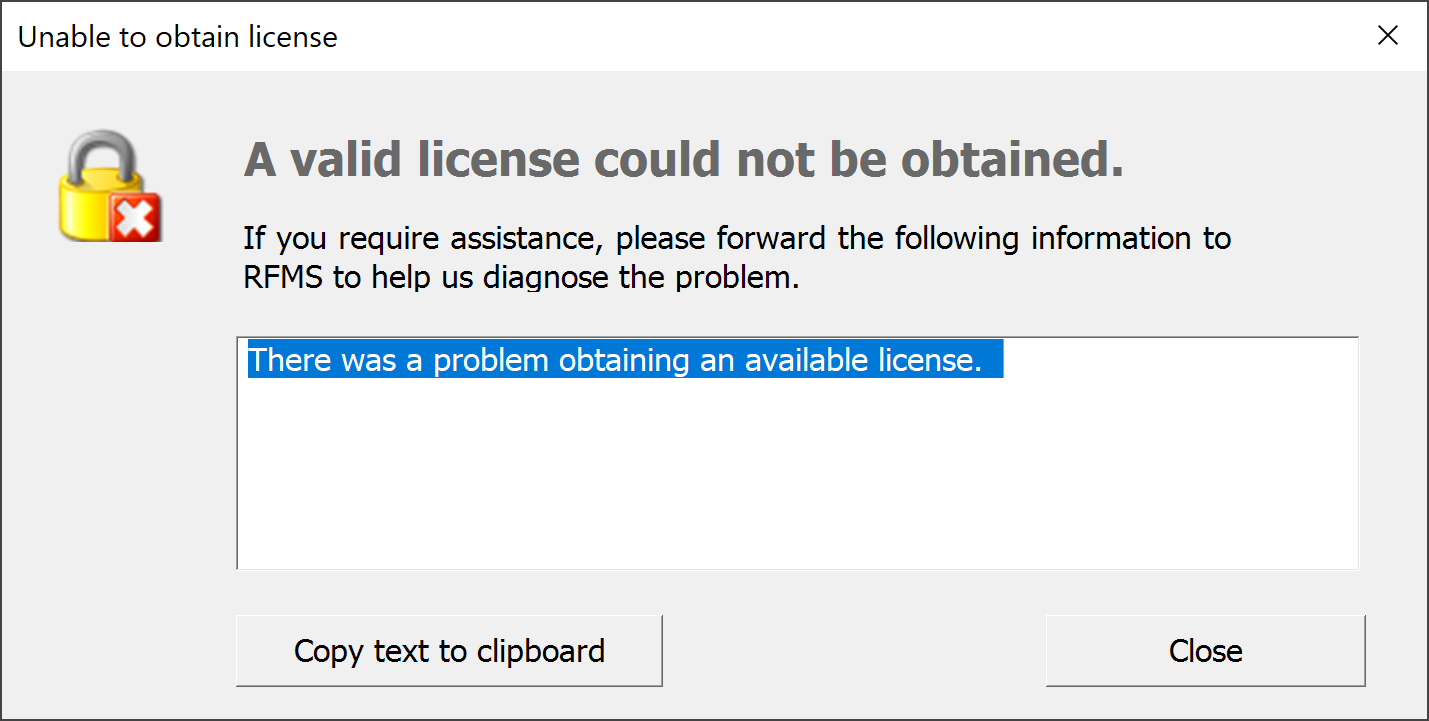
You're staring at your screen, and there it is. That annoying little pop-up or red text: your authentication could not be validated. It usually happens right when you're in a hurry. Maybe you’re trying to log into a work portal, verify a bank transfer, or just open a game you’ve played a thousand times. It feels like the digital equivalent of a bouncer looking at your ID and telling you it’s fake, even though you know you are exactly who you say you are.
The truth is, this error is a catch-all. It isn't just one problem; it's a symptom of a breakdown in the "handshake" between your device and a server.
The Messy Reality of Digital Handshakes
Authentication is basically a high-speed negotiation. Your device sends a "token" or a set of credentials, and the server checks its database to see if they match. When it fails, the server often doesn't know why it failed—it just knows the math didn't add up. So, it spits out the generic "could not be validated" message.
It's frustrating. I know.
Usually, the culprit is something boring like a desynced clock. Most security protocols, especially things like OAuth 2.0 or Time-based One-Time Passwords (TOTP), rely heavily on your device time matching the server time. If your computer is off by even a minute, the security token it generates is technically "from the future" or "the past" in the eyes of the server. The server sees this discrepancy and immediately kills the connection to prevent a replay attack. Check your settings. Is "Set time automatically" turned on? If not, that’s likely your smoking gun.
The Role of Stale Cookies
We talk about clearing cookies like it’s a magic spell, but there is actual logic behind it. Cookies and cache store old authentication sessions. If a website updated its security certificates or changed its login architecture while you were logged in, your browser might be trying to use an old, invalidated "key" to open a new "lock."
Think of it like an old hotel key card. The door lock changed, but you’re still trying to swipe the card from your last stay. It won't work. Deleting those specific cookies forces the site to issue you a brand-new, valid identity token.
When It’s Not Your Fault: Server-Side Glitches
Sometimes, you can do everything right and still get blocked. Large-scale platforms like AWS, Azure, or even smaller private corporate servers go through "hiccups." If the database that holds user permissions is under heavy load or experiencing a partial outage, it might be able to see that you’re trying to log in but can't verify your specific "permissions" fast enough.
In these cases, the system defaults to "deny." It’s a fail-secure mechanism.
API Mismatches and Third-Party Logins
A huge chunk of the internet now runs on "Log in with Google" or "Log in with Apple." This adds a third player to the mix. When you see your authentication could not be validated on a site using these services, the breakdown is often in the communication between the site and the provider (like Google).
- The site asks Google: "Is this person who they say they are?"
- Google says: "Yes, here is a token."
- The site tries to read the token but finds a formatting error.
- Access denied.
If you’re using a VPN, this happens way more often. Security systems see an IP address from Sweden one minute and New Jersey the next. It triggers a "fraud" flag. The system doesn't think you're a hacker; it just thinks your session is suspicious enough to stop validating it until you prove you're human.
The Hardware Factor: TPM and Security Chips
On modern Windows 11 machines or newer Macs, authentication isn't just about your password. It's tied to hardware. The Trusted Platform Module (TPM) stores cryptographic keys. If you recently updated your BIOS or changed a major hardware component, the "fingerprint" of your machine changed.
The server thinks: "Wait, this is the right username, but it's coming from a 'different' computer that claims to be the old one."
This is particularly common in enterprise environments using Microsoft Entra ID (formerly Azure AD). If your device "trust" relationship is broken, you’ll keep seeing the validation error no matter how many times you type the password correctly. You basically have to un-register and re-register the device to fix the hardware-to-cloud link.
Browser Extensions: The Silent Killers
I’ve seen dozens of cases where a simple ad-blocker or a "privacy" extension was the culprit. These extensions work by stripping away pieces of code they think are trackers. Sometimes, they accidentally strip away the authentication script.
If you're getting the error, try Incognito mode. If it works there, one of your extensions is definitely sabotaging you. It's usually something that blocks "cross-site scripting" (XSS). While XSS protection is good, it can be a bit too aggressive and block legitimate login redirects.
Common Software-Specific Triggers
Every app has its own quirks when it comes to this error.
- Gaming (Steam/Epic/Battle.net): Usually caused by an outdated launcher. The game tries to validate your license, but the launcher’s version is too old to communicate with the latest security API.
- Banking Apps: Almost always related to "rooted" or "jailbroken" phones. If the app detects the OS has been tampered with, it refuses to validate the environment for safety.
- Workplace Apps (Slack/Teams): Often a result of a password change that hasn't synced across all your devices yet. One device is trying to use the old "cached" password in the background, getting blocked, and triggering a temporary lockout for your whole account.
Honestly, it's a bit of a cat-and-mouse game. Developers want to make things secure, but the more layers they add, the more points of failure they create.
Troubleshooting Like a Pro
If you want to stop seeing your authentication could not be validated, you have to be systematic. Don't just click "retry" fifty times. That actually makes it worse because many systems will flag you for "brute forcing" and IP-ban you for an hour.
Step 1: The "Cold Start"
Close the app entirely. Don't just minimize it. On a PC, check Task Manager to make sure no background processes are still running. On a phone, swipe it away. Then, toggle your Airplane mode on and off. This forces a fresh IP assignment from your carrier or router, which can sometimes bypass a "sticky" failed session.
Step 2: Time Check
I mentioned this before, but it’s the #1 reason for validation failures in 2024 and 2025. Go to your settings. Sync your clock. Even if it looks correct, hit the "Sync Now" button. High-security sites use a window of about 30 seconds for token validity. If you're 31 seconds off, you're out.
Step 3: DNS Flush
Sometimes your computer remembers the wrong "path" to the authentication server. Opening a command prompt and typing ipconfig /flushdns clears out the old map. It’s a 5-second fix that solves a surprising amount of "could not be validated" loops.
Step 4: The VPN/Proxy Test
If you're using a VPN, turn it off. If you aren't using one, try turning one on. Some ISPs have "routing" issues to specific authentication headers. Changing your virtual location can bypass a congested or broken node in the internet's backbone.
Actionable Next Steps to Stay Validated
Stop the cycle of frustration before it starts. If you're dealing with this constantly, there are a few things you should do right now to harden your setup against these errors.
- Update Your Browser and OS: Security protocols change. If you're running Chrome version 110 when the world is on 125, the server might literally "stop speaking your language."
- Switch to a Password Manager with TOTP Support: Using apps like Bitwarden or 1Password to handle your 2FA (Two-Factor Authentication) is often more reliable than SMS-based codes, which are prone to delivery delays that cause validation timeouts.
- Check Service Status Pages: Before you pull your hair out, check
downdetector.comor the official status page of the service (e.g., "Microsoft 365 Status"). If the "Authentication Service" is yellow or red, there is nothing you can do but wait. - Review Connected Apps: Go into your Google or Apple account settings and look at "Authorized Apps." If you see old entries from years ago, revoke them. A "cluttered" authentication profile can lead to weird validation conflicts across different devices.
Authentication errors are a pain, but they are usually just a sign that the security system is doing its job—perhaps a little too well. By keeping your system clock synced, your cache clean, and your software updated, you can minimize the times you’re locked out of your own digital life.


